Wallper 1.2.1: Set Any Video as Your Mac Screen Saver
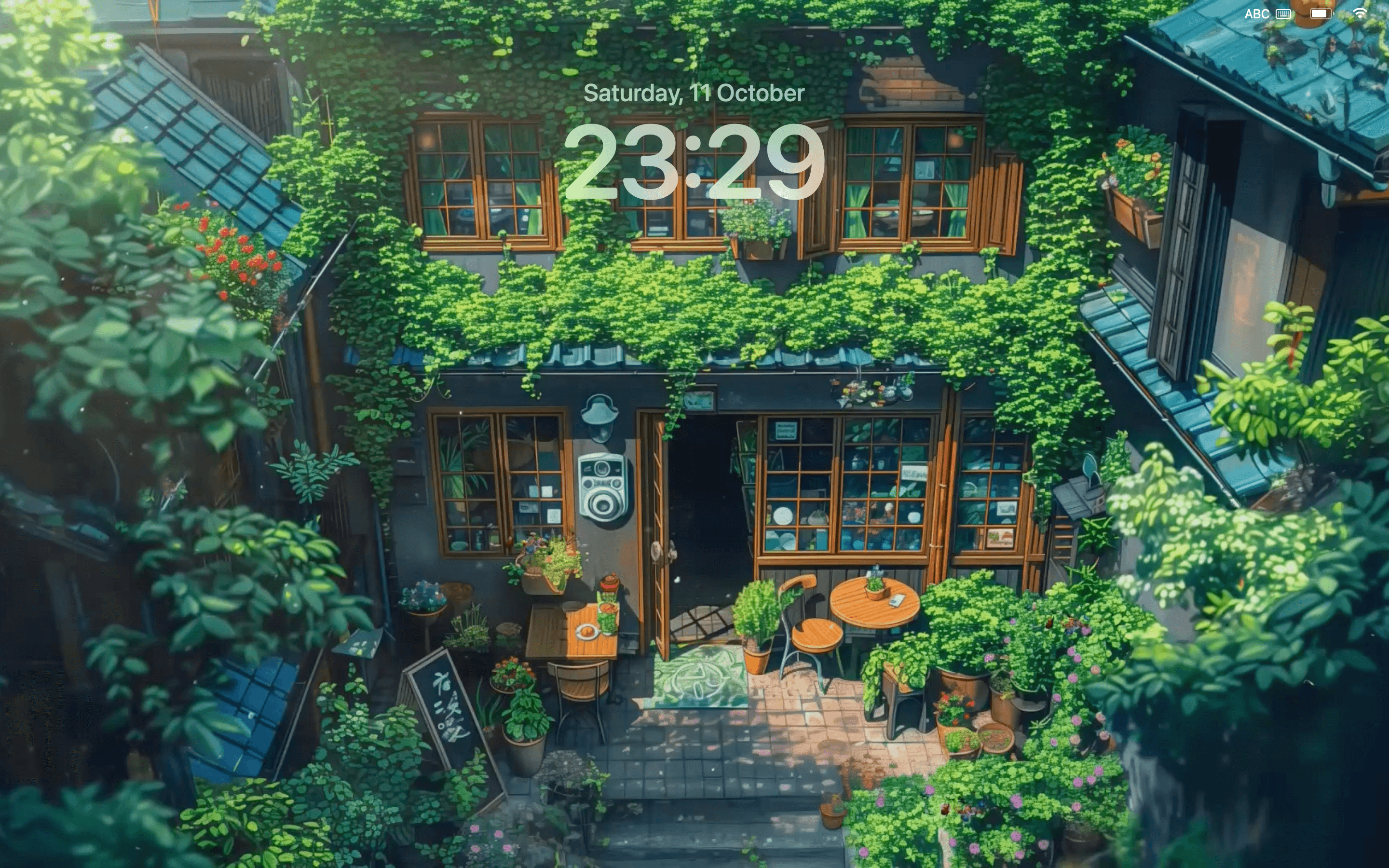

Turn any wallpaper into a native macOS screen saver. Wallper converts the file to .mov, backs up your original, and installs it where macOS expects to find it.
macOS has quietly supported video screen savers for years. Apple uses them itself: the aerial footage of Hong Kong and the Sonoma coastline that ships with every Mac is video, played full screen once your machine goes idle.
What macOS does not give you is a way to add your own.
Wallper 1.2.1 adds it.
The Manual Way, and Why Most People Give Up
Go looking for how to set a video as a screen saver on Mac and you will find the same recipe repeated across a dozen tutorials.
First, convert the video to .mov, because Apple’s screen saver system will not take an .mp4. Plenty of guides suggest simply renaming the file extension, which works often enough to be recommended and fails often enough to be maddening.
Then produce a still frame from the video, save it as a JPEG at the right dimensions, and name it so the system matches it to the clip.
Then copy both files into a folder buried at /Library/Application Support/com.apple.idleassetsd/Customer/, which is protected, which means authenticating, and on some macOS versions means turning off protections you should not be turning off.
Then hope macOS notices.
It is a genuinely clever piece of reverse engineering and it is entirely reasonable that people do it. It is also a procedure where every step has a way to go wrong, and where a mistake leaves you editing system folders by hand to undo it.
What Wallper Does Instead
Pick a wallpaper. Set it as your screen saver. That is the flow.
Underneath, Wallper does the same work those guides describe, minus the parts where you can hurt yourself:
-
The video is converted to
.movproperly, by re-encoding rather than renaming an extension, so it plays the way macOS expects rather than the way it tolerates. -
Your original file is backed up before anything is written, so nothing is lost if you change your mind.
-
The converted file is installed into the slot macOS reads from, so it appears in System Settings alongside Apple’s own screen savers.
On the macOS versions this release shipped for, the system could ask for a password once at install: macOS protecting the folder screen savers live in, the same request you would face copying a file there in Finder. Current versions on macOS 26 set this up with a one-time toggle instead, and no password is requested; the modern flow is on the setup page.
Once it is in place the animation keeps running while your Mac is locked, and playback is optimized so an idle machine is not working hard to display a video nobody is watching.
Screen Saver, Desktop Wallpaper, Lock Screen: Three Different Things
This distinction trips people up constantly, so it is worth being precise about.
A desktop wallpaper is what sits behind your icons while you work. A screen saver is what appears once your Mac has been idle for a while. A lock screen is what you see when the machine is locked and waiting for a password.
macOS treats all three as separate systems, with separate settings and separate rules. Most wallpaper apps handle only the first, which is why a desktop can look alive right up until the moment you walk away from it.
Wallper covers all three. The desktop side is covered in our guide to setting a video as a live wallpaper on Mac, and the lock screen in how to set a live wallpaper on your Mac lock screen.
If you are weighing this against Apple’s built-in aerials, the difference from the Aerial screen saver is worth a read.
Choose Something That Earns the Idle Time
A screen saver is watched differently from a wallpaper. Nobody stares at a desktop background, but a screen saver is often the only thing on a screen across the room, running for minutes at a stretch.
Slow footage holds up better than fast cutting. Nature loops and space scenes work particularly well: calm at a glance, still interesting if you actually look at them. Anything with hard motion or a strong repeating beat gets tiring quickly.
The whole wallpaper library is available as screen saver material, so it is worth previewing a few before you settle on one. For the full walkthrough of every route, including the manual one, see how to set a video as a screensaver on Mac.


